
Most support teams don't have a tooling problem. They have a context problem. Agents spend the first few minutes of every ticket piecing together what happened, who the customer is, and what's already been tried. Managers spend hours pulling ticket data into spreadsheets just to answer one question from leadership. And a lot of straightforward customer questions still land in a human queue because there's no fast way to check what's already been solved before.
TeamSupport AI features are built to close that gap. Instead of a generic assistant bolted onto your help desk or ticketing solution, it's trained directly on your ticket history, your customers, and your product context, so every answer, summary, or draft reply it generates is grounded in what's actually happening in your support environment.
This guide walks through how to actually use it, step by step, across four areas: asking questions of your ticket data, working AI into every ticket, letting AI triage incoming tickets automatically, and using an AI agent to deflect routine questions around the clock.
1. Start Your Day in the Research Tab
Before you touch your queue, open the Research tab inside TeamSupport. It turns your entire ticket history into something you can just ask questions of, no exports, no filters, no waiting on a report.
To use it:
- Click Research in the left navigation.
- Type your question in plain language. No query syntax needed.
- Ask follow-up questions to drill deeper without repeating context.
- Copy the results directly into a leadership update, a team message, or a client email.
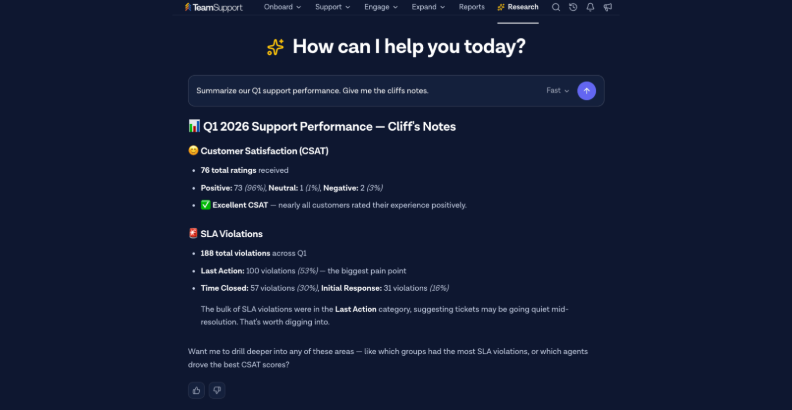
What you ask depends on your role. Managers tend to use it for things like "What issues spiked this week compared to last?" or "Show me tickets open more than 14 days." For executive reporting, it's questions like "Summarize our support performance for Q1" or "Which of our largest accounts had the most escalations?" And for day-to-day operations, it's fast checks like "What's the most common issue type this week?" or "Any customers with multiple open tickets right now?"
One distinction worth keeping in mind: Research is for the specific, one-off question, the thing no dashboard was built to answer. If you're tracking a KPI every week or want a persistent view your whole team can check, that's what a standing dashboard is for. Use both together: dashboards for the recurring metrics, Research for everything else.
2. Put AI to Work on Every Ticket
Every ticket page has a Ticket Assist button, and it's worth building into your routine on every ticket, not just the hard ones. The AI reads the full thread, every reply, every action, before responding, so there's no tab-switching or copy-pasting context into a separate tool.
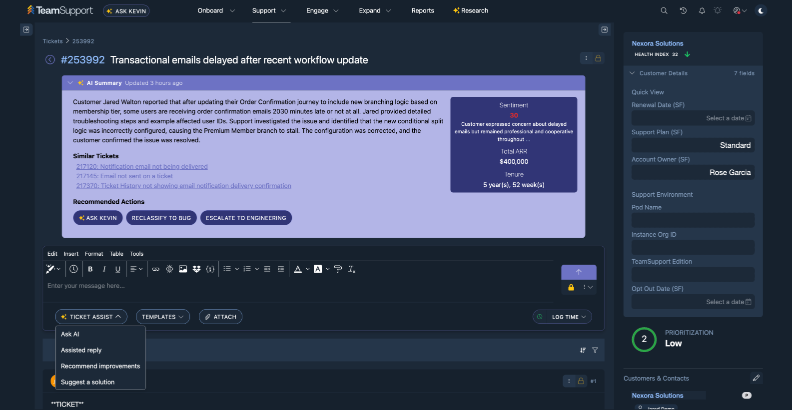
There are five actions available, and each one solves a different problem:
Ask AI. Use this for any open-ended question about the ticket: has this customer seen this issue before, what did we try last time, what caused this. Treat it like asking a knowledgeable colleague.
Summarize this ticket. Condenses a long thread into a clear brief: the issue, what was tried, where things stand. This is the one to run on every handoff, and on any ticket with ten or more actions. It takes about three seconds and means the next agent isn't starting from scratch.
Assisted reply. Drafts a complete, customer-ready response based on the full ticket context. It's most useful on emotionally charged or technically dense tickets, where getting the tone right takes time you don't always have. Use it as a strong first draft; your judgment on tone and relationship context should still shape the final send.
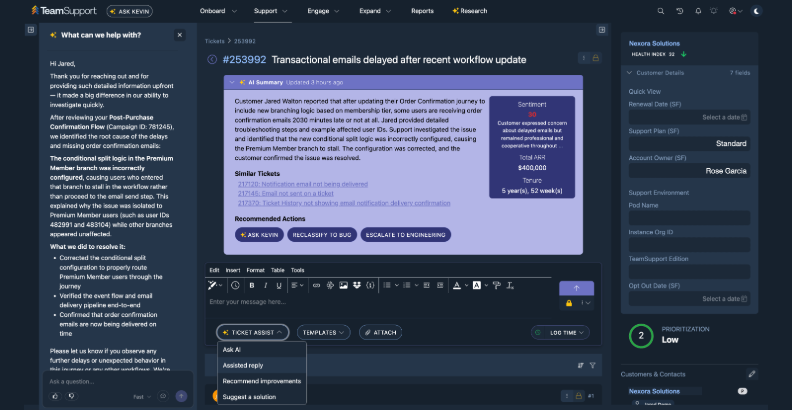
Recommend improvements. Looks at how the ticket is being handled and suggests ways to improve the outcome: tone, missing context, faster paths to resolution. Run this periodically on your own tickets as a coaching tool, not just a fix for a stuck ticket.
Suggest a solution. Pulls from your full ticket history and knowledge base to surface how similar past cases were resolved. Use the suggestion as a starting point, then apply your own knowledge of the customer before responding.
If you're not sure which to reach for: use Ask AI for a handoff question, Summarize for a handoff itself, Assisted reply when you're writing the actual response, Recommend improvements when you want to handle it better, and Suggest a solution when you need the fix itself.
A few practical ways teams put this to work immediately: attach a customer's log file to a ticket and ask AI to analyze it and explain what's wrong before engineering ever sees it. After resolving a complex ticket, ask AI to summarize the issue, what was tried, and how it was resolved as an internal note, turning a manual writeup into a few seconds of work. And in the Research tab, ask what issues customers are asking about that don't have a knowledge base article yet, so you can close content gaps before they generate more tickets.
Want to learn more about TeamSupport?
3. Let AI Triage Incoming Tickets Before You Open Them
The AI Triage Agent acts as a first responder on every new incoming ticket, doing the prep work before an agent ever opens it. By the time a ticket reaches your queue, it's already been categorized and prioritized, and if information is missing, the AI has privately reached out to the customer to gather it.
Specifically, it will reply privately to the customer to collect any missing context, auto-populate required fields so tickets arrive fully categorized, create parent incidents when multiple tickets describe the same underlying issue, and set priority and complexity signals so your queue is pre-ranked by urgency before agents start their day. Routing runs through a configurable Skills Layer, so tickets land with the right agent rather than whoever happens to be free.
The practical effect: agents open a queue that's already organized instead of spending the first ten minutes of their shift figuring out what to work on first.
4. Let AI Handle the Routine Questions, 24/7
The AI Agent handles common customer questions automatically, answering inquiries, gathering information, and resolving issues without a human touching the ticket. It's trained on your knowledge base and ticket history, so its answers reflect your product, not generic web results.
The flow is simple: a customer asks a question via chat or submits a ticket, the AI Agent searches your knowledge base and ticket history for an accurate resolution, and routine issues get resolved instantly, while anything too complex or sensitive hands off to your team with full context already captured.
The metric worth watching weekly is AI Agent volume against human-handled volume. Rising deflection alongside stable or improving CSAT is the signal that it's working. When you spot a topic the Agent handles well, that's also a cue to check your knowledge base coverage, since expanding it there tends to expand what the Agent can safely handle on its own.
Building These Into a Daily Habit
None of this requires a process overhaul. A few habits make the difference between using these features occasionally and actually getting value from them every day:
For managers: open Research first thing to check yesterday's volume before touching your queue, track deflection weekly, let AI draft the first pass of any leadership report, and periodically ask which AI features your team used that week, using the gaps as the basis for a short walkthrough.
For agents: summarize any ticket with prior history or a handoff before responding, run an assisted reply before any emotionally charged or technically complex email, use suggest a solution any time you're unsure of the right path, and ask AI to draft internal notes after resolving something complex.
The common thread across all four features is that none of them ask you to leave your existing workflow to get value. The AI is already sitting inside the ticket, the queue, and the chat. The work is building the habit of asking it questions before doing that work manually.